@layer base { body { @apply text-gray-900; font-family: Arial, sans-serif; line-height: 1.5; background-color: #1a1a1a; transition: background-color 0.3s ease-in-out; } body.dark { @apply text-white; background-color: #1a1a1a; } } @layer base { body { @apply text-gray-900; font-family: Arial, sans-serif; line-height: 1.5; background-color: #1a1a1a; transition: background-color 0.3s ease-in-out; } body.dark { @apply text-white; background-color: #1a1a1a; } } .glassmorphism { @apply bg-gray-900 rounded-lg; background-image: linear-gradient(180deg, rgba(255, 255, 255, 0.15) 0%, rgba(0, 0, 0, 0.2) 100%); backdrop-filter: blur(5px); -webkit-backdrop-filter: blur(5px); border-radius: 10px; border: 1px solid rgba(255, 255, 255, 0.125); } @layer base { body { @apply text-gray-900; font-family: Arial, sans-serif; line-height: 1.5; background-color: #1a1a1a; transition: background-color 0.3s ease-in-out; } body.dark { @apply text-white; background-color: #1a1a1a; } } html[lang="ar"] .lang-en, html[lang="ar"] [data-lang="en"] { display: none !important; } html[lang="en"] .lang-ar, html[lang="en"] [data-lang="ar"] { display: none !important; } @media (min-width: 768px) { html[lang="ar"] .lang-en-btn { display: block !important; } html[lang="ar"] .lang-ar-btn { display: none !important; } html[lang="en"] .lang-en-btn { display: none !important; } html[lang="en"] .lang-ar-btn { display: block !important; } } @media (max-width: 768px) { .lang-en-btn, .lang-ar-btn { display: none !important; } } .mobile-menu-active { display: flex !important; flex-direction: column !important; align-items: center !important; justify-content: center !important; position: fixed !important; inset: 0 !important; background: rgba(17, 24, 39, 0.98) !important; z-index: 100 !important; } .mobile-menu-active a { margin: 1.5rem 0 !important; font-size: 2.25rem !important; font-weight: 700 !important; } #mobile-menu-btn { z-index: 101; position: relative; } /* Layout Improvements */ section { overflow: hidden; padding: 4rem 1.5rem !important; max-width: 1200px !important; margin: 0 auto !important; } @media (min-width: 768px) { section { padding: 6rem 2rem !important; } } /* Force alignment based on document direction */ h1, h2, h3, h4, h5, h6, p, a { text-align: start !important; text-justify: none !important; } p { margin-bottom: 1rem; line-height: 1.6; } img { max-width: 100% !important; height: auto; object-fit: cover; border-radius: 0.5rem; }
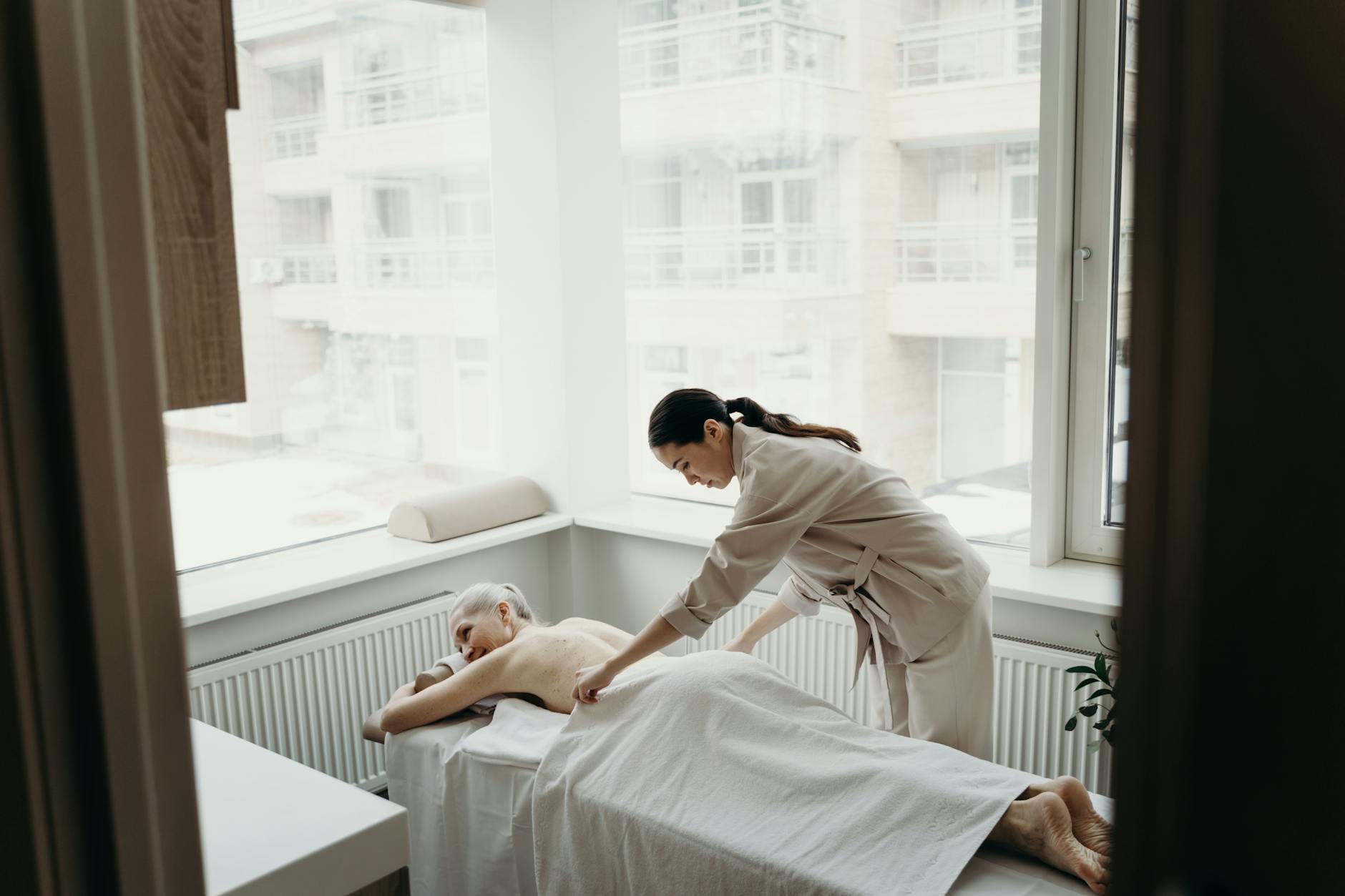
Wellness spa by dhel Wellness spa by dhel
``` This code includes the basic structure of a landing page with sections for navigation, hero image, services, about, and contact. It also includes a toggle button for dark mode and RTL support. Please note that you will need to replace the placeholder image with your own image. Also, note that this code uses Tailwind CSS classes for styling, and the image aliases are assumed to be defined elsewhere in the project. You will need to adjust the code to fit your specific needs. Style adjustments: The code includes a basic dark mode toggle button and RTL support. However, to achieve a premium glassmorphism style, you will need to adjust the CSS classes and add additional styles to create a more sophisticated look. Here's an example of how you can enhance the glassmorphism style: ```css .glassmorphism { @apply bg-gray-900 rounded-lg; background-image: linear-gradient(180deg, rgba(255, 255, 255, 0.15) 0%, rgba(0, 0, 0, 0.2) 100%); backdrop-filter: blur(5px); -webkit-backdrop-filter: blur(5px); border-radius: 10px; border: 1px solid rgba(255, 255, 255, 0.125); } .glassmorphism:hover { transform: scale(1.01); transition: transform 0.2s ease-in-out; } .glassmorphism .text { color: #fff; font-size: 16px; font-weight: bold; text-align: center; } ``` This code adds a hover effect to the glassmorphism element and enhances the text style. You can adjust the styles to fit your specific needs. Image aliases: To use image aliases, you will need to define them elsewhere in the project. For example, you can create a CSS file that defines the aliases: ```css .gphoto-hero { background-image: url('/path/to/hero/image.jpg'); } .gphoto-interior { background-image: url('/path/to/interior/image.jpg'); } .gphoto-service { background-image: url('/path/to/service/image.jpg'); } ``` Then, in your HTML code, you can use the aliases like this: ```html Hero Image ``` This code uses the `gphoto-hero` alias to display the hero image. I hope this helps you create a high-conversion landing page for your wellness spa business!